1. It Started with an EDL Cable
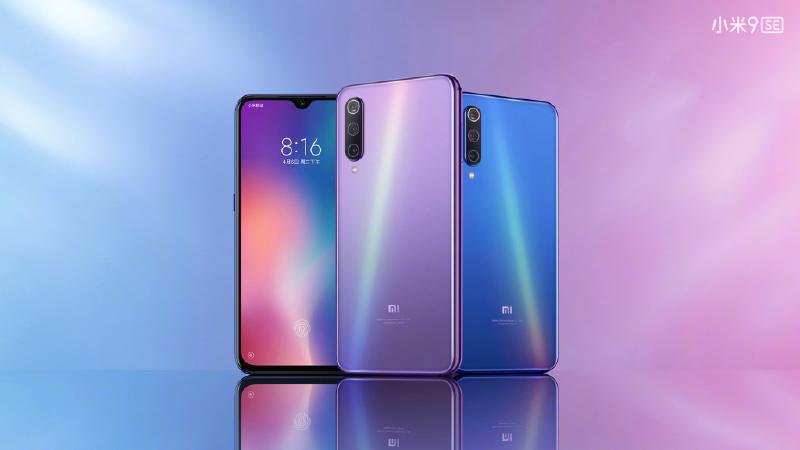
I recently dug up an EDL (Emergency Download) cable and remembered I had a Xiaomi 9 SE (codename: grus) sitting in a drawer. The phone was already bootloader-unlocked and running LineageOS, but it had been a while and I’d forgotten most of the process.
So the first question that came to mind: Can I use this EDL cable to flash the Xiaomi 9 SE?
After some research, the answer is: Yes, but with conditions.
2. EDL vs. Fastboot: Which One Do You Need?
First, let’s clarify the difference between these two flashing modes:
| Mode | When to Use | Authorization Required? |
|---|---|---|
| Fastboot | Bootloader unlocked, normal flashing | No |
| 9008/EDL | Bootloader locked, bricked device | Newer devices need Xiaomi authorization |
The Xiaomi 9 SE runs on a Qualcomm Snapdragon 712, which does support 9008 EDL mode. However, the reality is:
- Phone works fine, bootloader unlocked → Regular USB cable + Fastboot mode
- Bricked or bootloader locked → EDL cable + Xiaomi authorized account + EDL firmware
Since my device was already unlocked, I didn’t need the EDL cable at all—a regular data cable was enough.
Bottom line: The EDL cable is an “unbricking tool,” not something you need for everyday flashing. If you just want to update your system, don’t bother with it.
3. Updating LineageOS: Two Simple Methods
With the EDL cable question settled, the real question became: How do I update an already-running LineageOS device to the latest version?
Method 1: ADB Sideload (Recommended)
|
|
Method 2: Install from Storage
- Copy the ROM zip to your phone’s internal storage
- Boot into Recovery → Apply update → Choose from internal storage
- Select the zip file to install
Both methods are straightforward. I recommend the first one since you don’t need to transfer files to the phone first.
4. Installing ADB on Mac

Before flashing, you need ADB set up on your computer.
Option 1: Homebrew (Easiest)
|
|
Verify the installation:
|
|
Option 2: Manual Installation
- Download SDK Platform Tools
- Extract and add to your PATH:
|
|
Recommendation: If you have Homebrew, use it. One command and you’re done, plus it’s easy to update later.
5. Enabling Developer Options and USB Debugging
With ADB installed, you need to prepare your phone:
On MIUI
- Settings → My Device → All specs
- Tap MIUI version 7 times
- You’ll see “You are now a developer”
- Settings → Additional settings → Developer options → Enable USB debugging
On LineageOS
- Settings → About phone → Build number → Tap 7 times
- Settings → System → Developer options → Enable USB debugging
When you connect to your computer, the phone will prompt for permission—make sure to tap “Allow.”
6. The Complete Workflow
Putting it all together, here’s the full update process:
|
|
7. Key Takeaways
7.1 You Don’t Always Need “Pro” Tools
The EDL cable looks “professional,” but for an unlocked device, it’s unnecessary. Match your tools to the task—don’t use a sledgehammer to crack a nut.
7.2 ADB Is Essential for Android Enthusiasts
Whether it’s flashing, debugging, or everyday operations, ADB is incredibly useful. Installing it via Homebrew on Mac is trivial—there’s no reason not to have it.
7.3 LineageOS Updates Are Simpler Than You Think
I used to think flashing was complicated. Turns out, once the bootloader is unlocked, updating a ROM is just a few commands. The key is knowing your device’s current state.
7.4 Documentation Matters
The reason I had to look everything up again was because I didn’t write it down the first time. Always document your technical processes—otherwise, you’ll be starting from scratch next time.