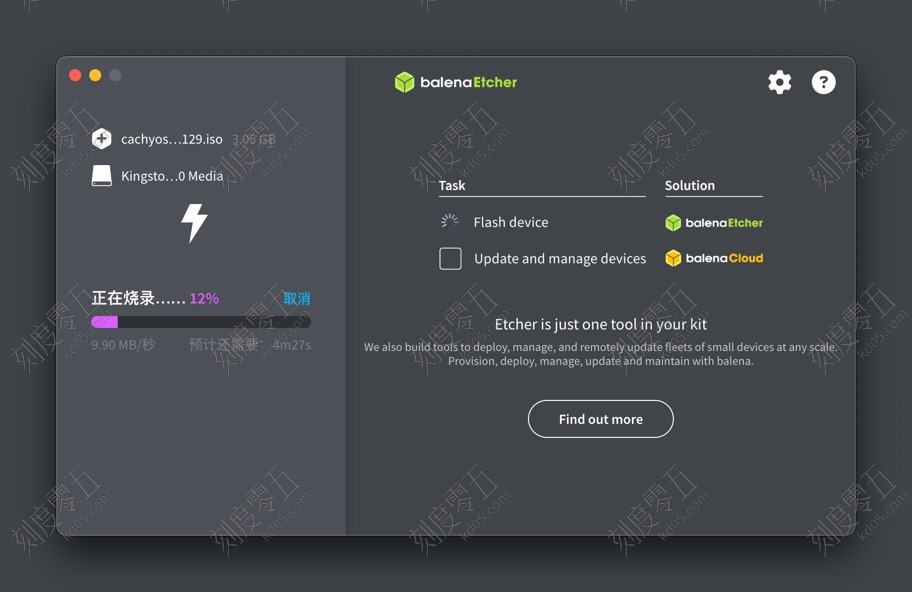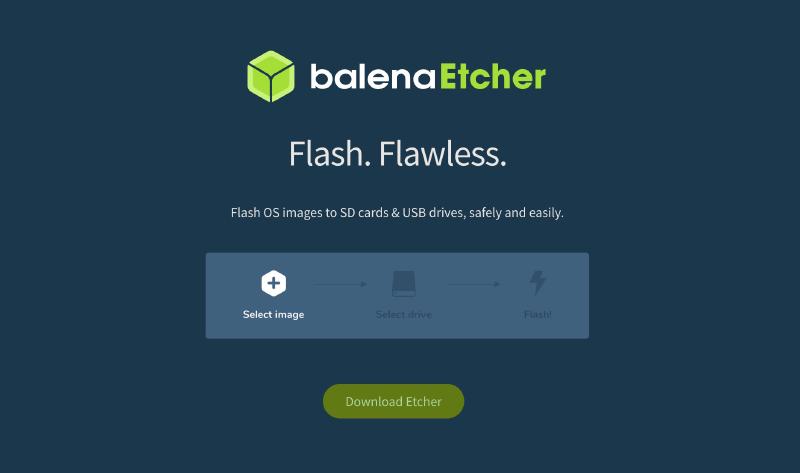
Download BalenaEtcher
When you’re getting ready to install Linux, you’ll usually use a USB drive for the job. Your first step is finding a tool to write that ISO file onto your USB stick or SD card.
I highly recommend a free and super handy tool called BalenaEtcher: https://etcher.balena.io/.
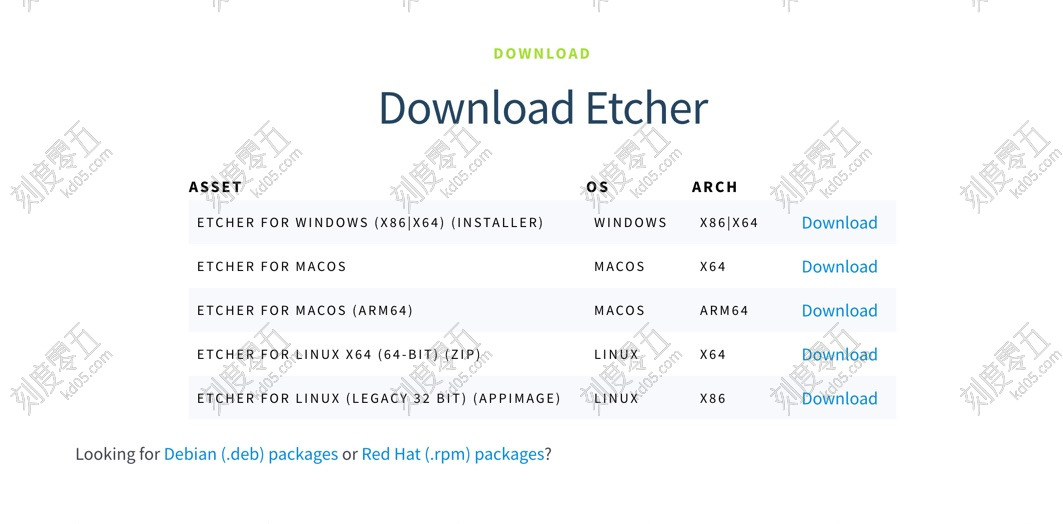
Just pick the version that matches your computer. For example, I’m using Etcher for macOS (arm64).
How to Flash the Image
BalenaEtcher is a breeze to use—you just follow the steps one by one. First, pick the image file you want to use, like a Linux ISO.
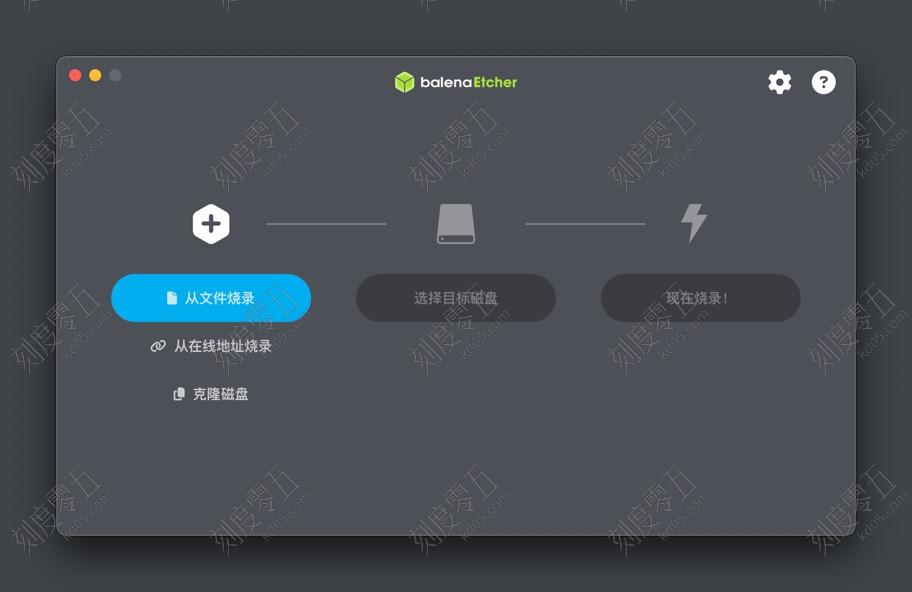
Next, choose where you want to write it, like your USB stick or SD card.
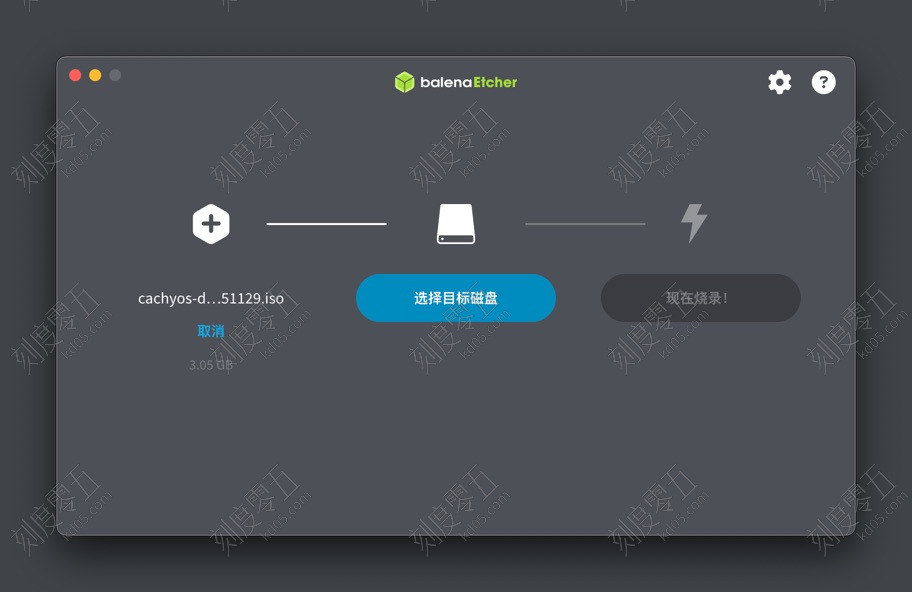
Usually, BalenaEtcher hides your computer’s main hard drive so you don’t accidentally wipe it. Just make sure you double-check so you don’t pick the wrong drive and lose your files!
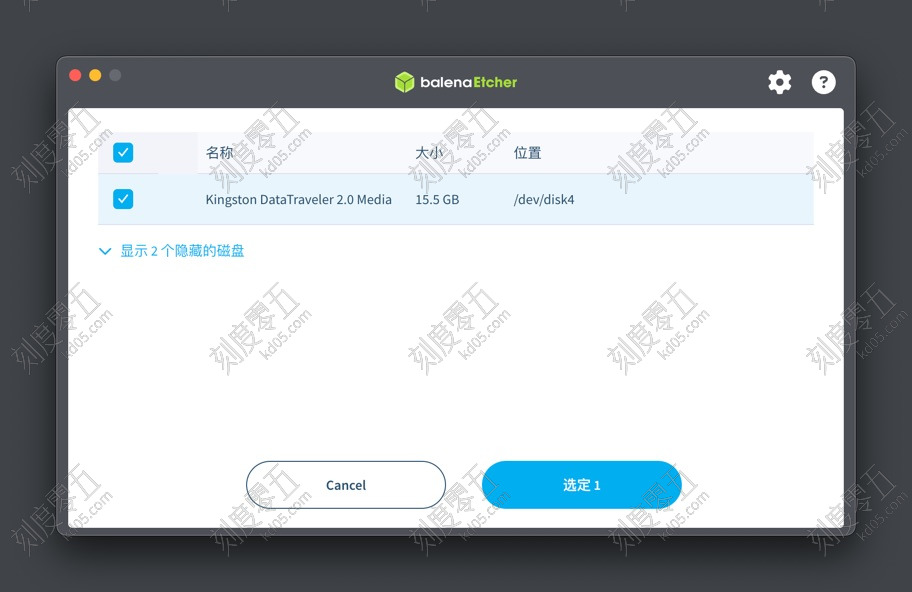
Once everything looks good, just hit Flash!. You’ll need to enter your computer password, and it’ll start writing.