
DNS over HTTPS (DoH)
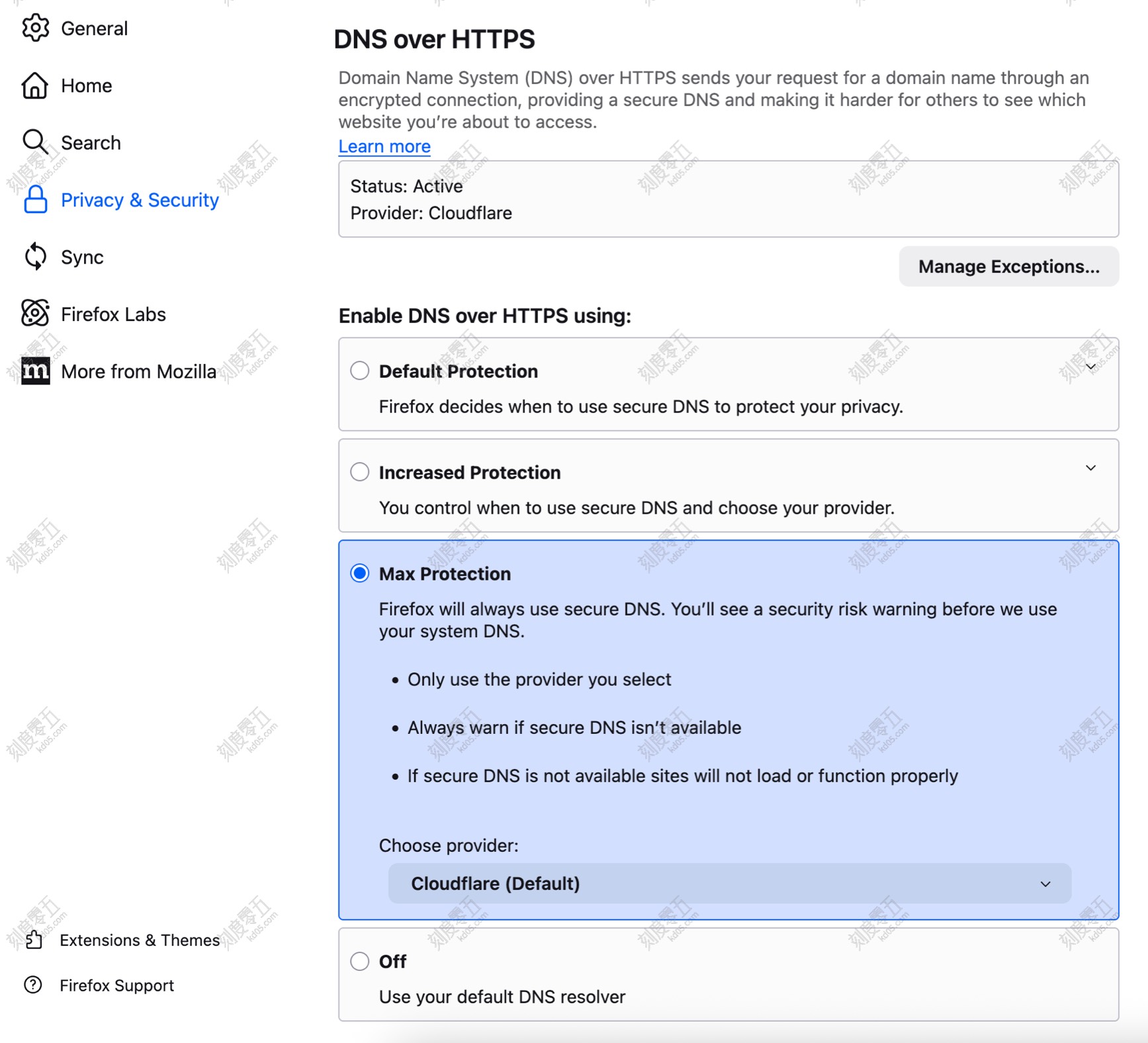
In the Privacy & Security settings, locate DNS over HTTPS and select Max Protection. This allows Firefox to bypass your router’s DNS settings and resolve queries through a trusted provider like Cloudflare. This prevents upstream DNS servers from poisoning your HTTP requests and keeps your DNS query history hidden from your Internet Service Provider (ISP).
HTTPS-Only Mode
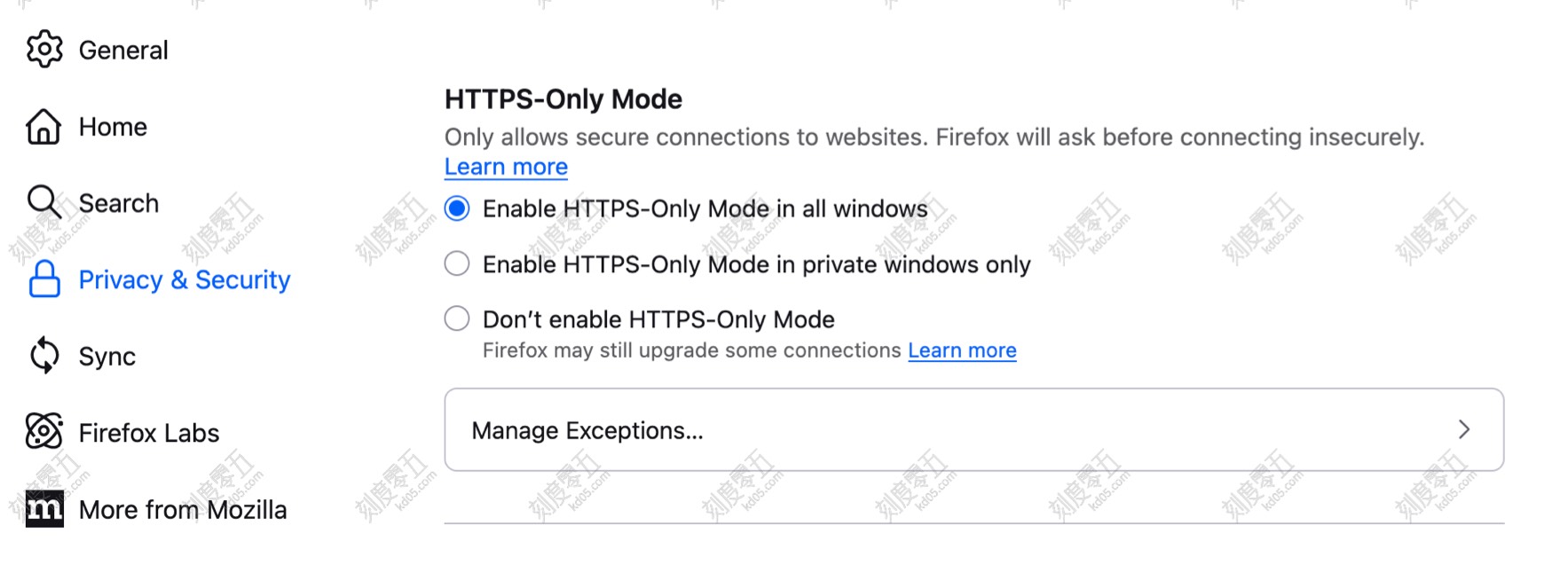
Under Privacy & Security, enable Enable HTTPS-Only Mode in all windows. When attempting to visit an unencrypted HTTP website, Firefox will issue a warning, allowing you to decide whether to proceed.
Use Strict Mode
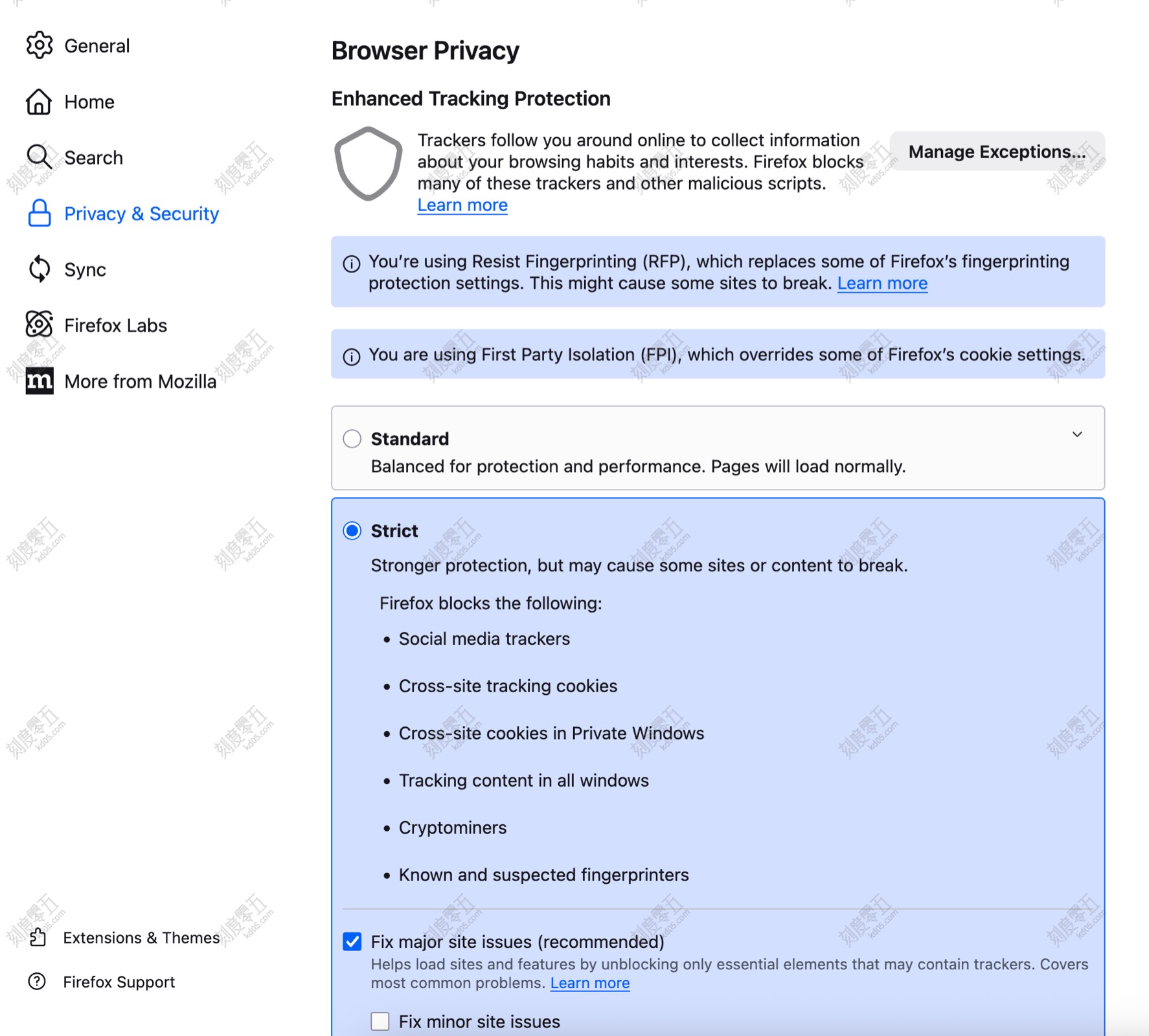
In the Enhanced Tracking Protection section of Privacy & Security, select Strict mode. This automatically blocks third-party cookies, preventing trackers from identifying and following your behavior across different sites.
Advanced Configurations (about:config)
Type about:config in the address bar and press Enter to access Firefox’s advanced hidden settings.
Set privacy.resistFingerprinting to true
Enabling this helps prevent third parties from gathering “digital fingerprints”—such as screen resolution, installed fonts, and hardware specifications—to uniquely identify you.
Set webgl.disabled to true (Disables GPU rendering; use with caution)
This prevents websites from identifying you via your graphics card information. Note that this will break 3D content and hardware-accelerated visuals on many sites. Use this only if you require extreme privacy.
Set media.peerconnection.enabled to false (Breaks P2P communication; use with caution)
This disables WebRTC (Web Real-Time Communication). WebRTC can inadvertently leak your true public IP address or local LAN IP, even when using a VPN. Furthermore, disabling it prevents trackers from using your microphone and camera model information for fingerprinting. Note: This will break browser-based voice/video calls (e.g., Google Meet, Discord).
Set geo.enabled to false
This disables the browser’s geolocation feature, preventing websites from accessing your precise geographic location or using it to correlate your IP address.
Set privacy.firstparty.isolate to true (Use with caution)
When enabled, the browser “sandboxes” all resources (Cookies, cache, HSTS status, DOM storage, etc.) based on the First-Party Domain you are currently visiting.
Note: This may break third-party login integrations. For example, using “Sign in with Google” on a third-party site may fail because the login state cannot be shared across different domains.