Sidebar Explorer: Stick Folder Names to the Top
When you’re working on a huge project with tons of folders, it’s easy to get lost. This feature keeps the parent folders pinned to the top as you scroll through the file tree, so you always know exactly where you are.
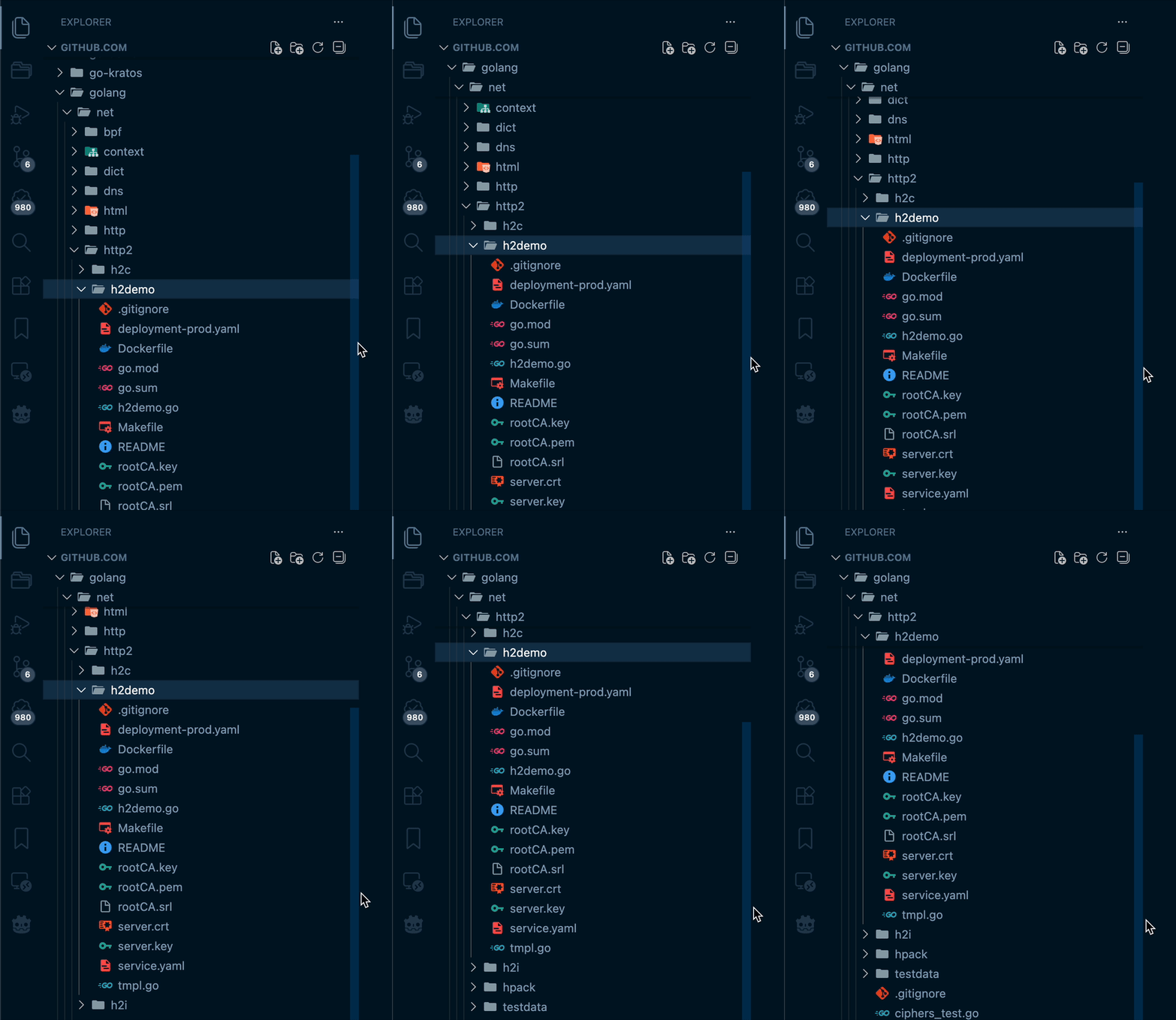
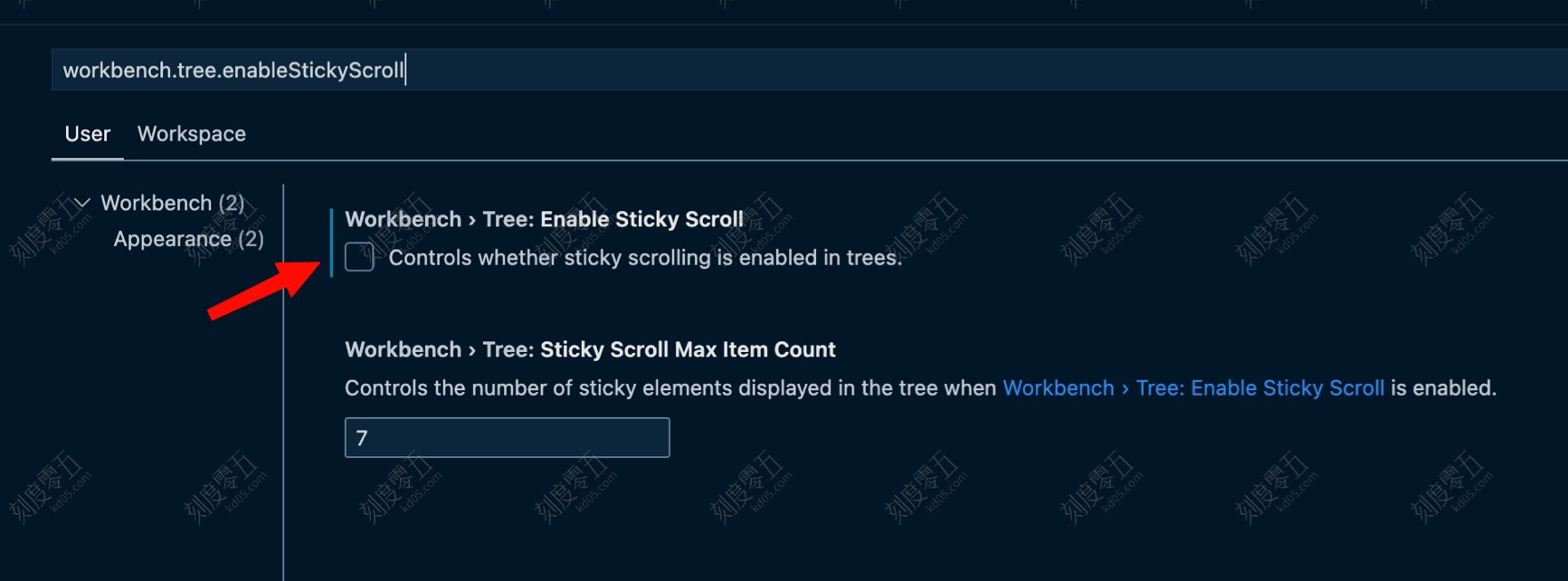
Search for workbench.tree.enableStickyScroll in your settings and check the box to turn it on.
Editor Window: Pin Function Names or HTML Tags while Scrolling
When you’re dealing with long files, this keeps the “header” of your current code block—like a function name, an HTML tag, or a Markdown heading—stuck to the top of the editor. It makes it way easier to see which part of the code you’re actually editing.
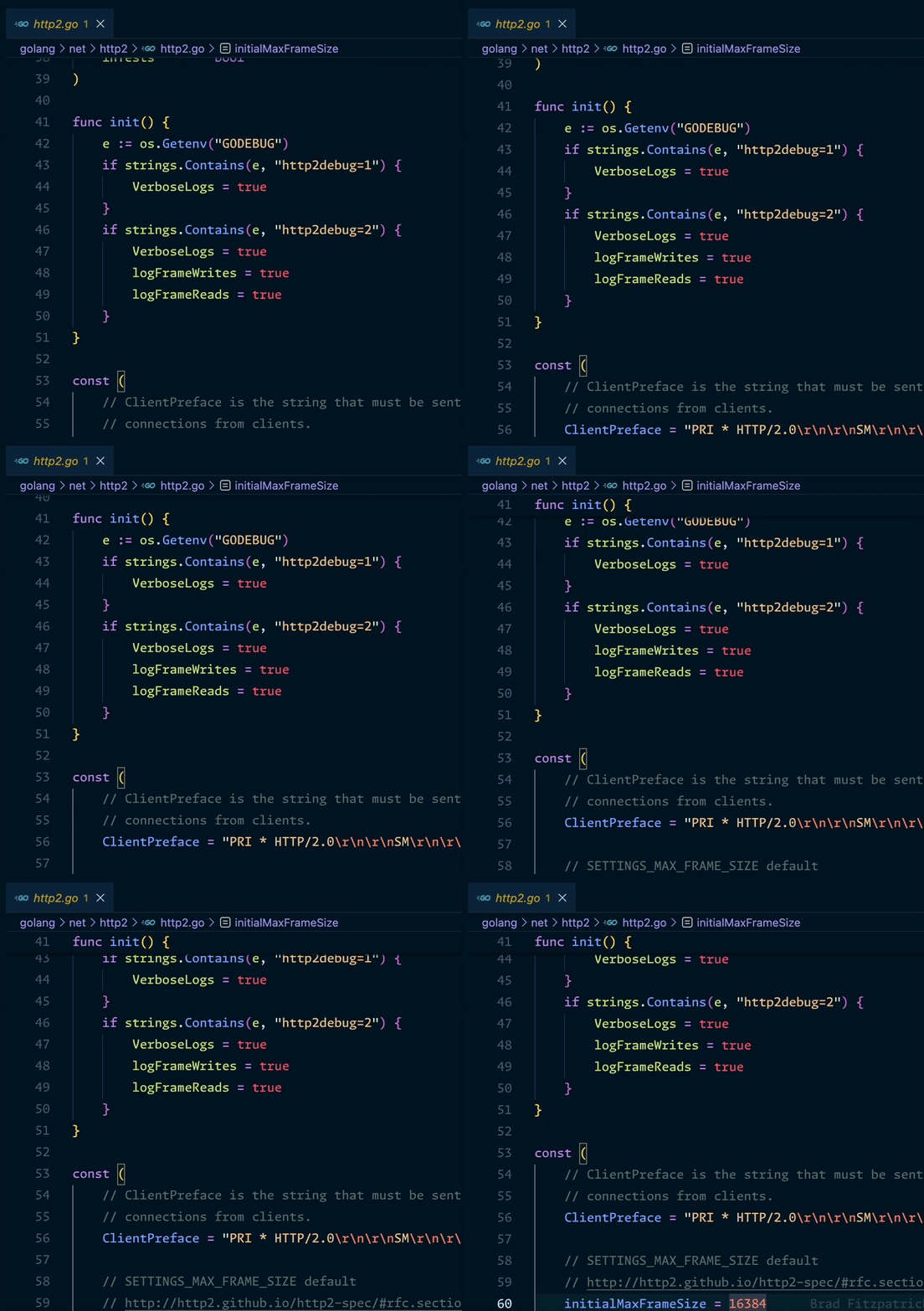
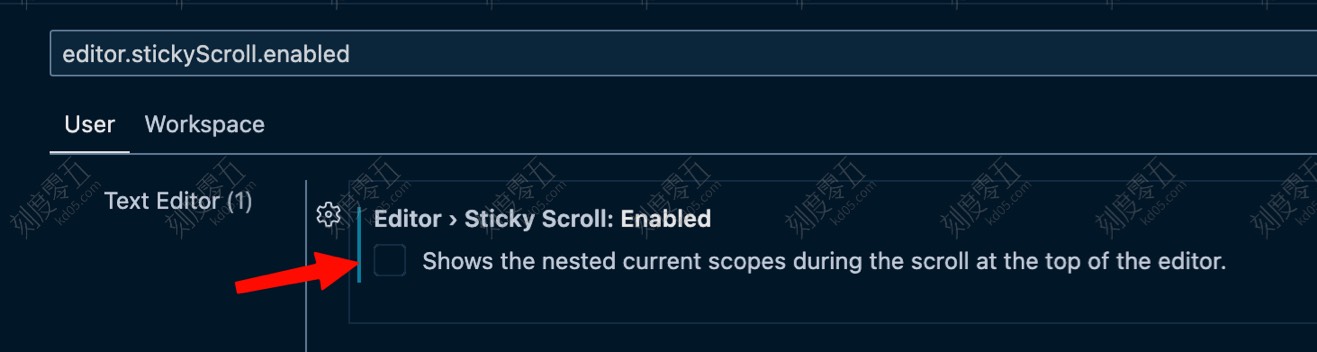
Search for editor.stickyScroll.enabled in your settings and check the box to enable it.
Make Cursor Movement and Typing Feel Smoother
Search for editor.cursorSmoothCaretAnimation and turn it on. Instead of jumping instantly, your cursor will glide smoothly to the next spot. Typing also gets a subtle fade-in effect. It makes the whole coding experience feel much more polished—give it a try and see if you like it!
Smooth Fading for the Blinking Cursor
Search for editor.cursorBlinking and set it to a smoother option. This changes the standard “on/off” blink to a soft fade-in and fade-out, which is a lot easier on the eyes.
Enable Multi-Window Tabs (macOS Only)

VSCode isn’t always great at handling multiple project windows. Even with “Workspaces,” things can get messy fast when you have 7 or 8 projects open at once.
Search for NativeTabs in settings, enable it, and restart. Then, go to Window -> Merge All Windows. This will tuck all your separate VSCode windows into a single window with neat tabs, just like a web browser.